Virtual machine lifecycle
A virtual machine in vStack Center exists in three places at once. The cluster database stores its authoritative configuration: name, vCPU count, RAM size, OS profile, and lists of disks and network ports. The disk ZFS datasets reside on a storage pool. A node runs the hypervisor process built from this configuration. vStack Center is the control plane: it maintains the authoritative configuration, while agents on the nodes execute commands.
This separation defines the subsystem's main characteristic: almost every VM operation
first changes the cluster record, then the state on the node. A VM therefore has two
statuses. admin_status is the desired state, set by vStack Center at the operator's
request. oper_status is the actual state, reported by the agents, along with
oper_status_ts, the time of the last update. While a command is on its way to the
node, the statuses differ, which is normal. A discrepancy that persists for minutes
is a signal to investigate.
To prevent two operations from overwriting the same VM at once, vStack Center sets the
locked flag. Starting, stopping, adding a disk, and ballooning lock the VM for the
duration of the operation and release the lock in the agent response handler. While
the flag is set, competing calls are rejected with "VM is locked"; only one request
can acquire the VM, because the check and the flag update are a single atomic action.
Starting with 3.1.0, a stuck lock usually does not need to be released manually. A
communication failure with the message broker automatically releases the lock before
the operator sees the error. A VM's transitional state lasts no longer than its timeout
(see the table below). When the timeout expires, the VM moves to the corresponding
failure state, and the reason is recorded in the service log and the VM's state history.
Manual vm-unlock remains available for cases that neither mechanism handles,
and only the Cluster master role can use it.
The second attribute used throughout the subsystem is the configuration version, hw_version.
VMs with configuration version three remain from older installations: the v4 family of methods does not
manage them and rejects requests with a separate error code. Everything described
in this section applies to hw_version = 4; v3 VMs support only reading and deletion.
The third attribute determines where a VM can run. The nvme field indicates the
disk connection mode: true means NVMe, and false means virtio-blk. In NVMe mode,
disks are accessible to the node over the network, so a VM can start on any online
cluster node, and vStack Center can select the least loaded node itself. With virtio-blk,
the disk is visible only to the node hosting the pool, so the VM can start only there.
Windows VMs carried over from the old disk configuration usually have nvme = false.
vStack Center does not keep requests open for long operations. It queues the command and returns control immediately; the storage controller and node agent then do the work. This determines how to read the interface: an accepted command has not yet been completed. Completion is confirmed by the VM status and an entry in the event history on the VM card.
VM states
The VM state appears in the State column of the VM list and on the VM card. The
VM list opens on the VDC's Virtual Machines tab and contains the ID, Name, IP,
OS, State, and Health columns.
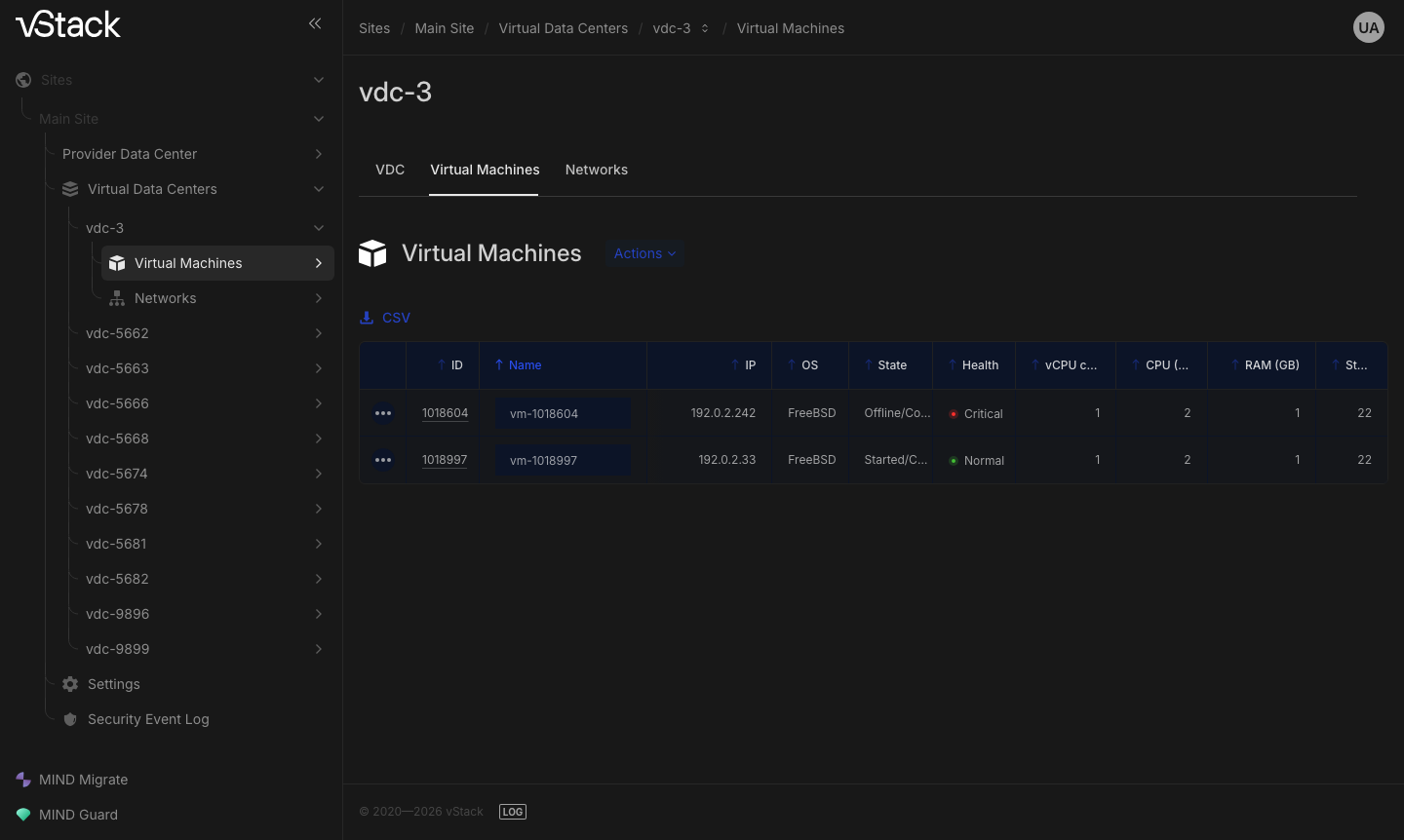
The admin_status values used to validate power operations:
admin_status | State | Available operations |
|---|---|---|
1 | Stopped | Start, roll back to a snapshot, clone, migrate, add and remove disks and network ports |
10 | Created, never started | Start, migrate |
3 | Running | Stop, restart, suspend, change limits, ballooning, console |
11 | Suspended | Resume |
9 | Being deleted | None: an operation is in progress |
Transitional states and their timeouts
A transitional state indicates an operation in progress, rather than an end state. Starting with 3.1.0, each has its own timeout: if the agent does not respond within that time, the VM moves to the corresponding failure state and is unlocked, so the operation can be retried and deletion is no longer rejected because the VM is locked. Timeouts reflect the nature of each operation rather than using one common value.
| Transitional state | Timeout | State after timeout |
|---|---|---|
| Starting | 15 minutes | Start failed |
| Stopping | 30 minutes | Stop failed |
| Suspending | 30 minutes | Suspend failed |
| Resuming | 30 minutes | Resume failed |
| Being created | 1 hour | Creation failed |
| Being deleted | 1 hour | Deletion failed |
| Being migrated | 6 hours | Migration failed |
| Being restored | 6 hours | Restore failed |
Two clarifications apply. A successfully created VM that has never been started is not subject to this rule: it can legitimately remain in the creation state until the first node event or inventory cycle. Also, when an agent hangs, the VM leaves the transitional state when the timeout expires, rather than immediately; if the agent responds later, the VM state is corrected to reflect its actual state.
Another start command for a VM that is already running returns "Unable to start VM having admin_status==N already". A suspended VM can be stopped with the normal stop command; to start it, first resume it from suspension.
Configuration version and disk mode
| Attribute | Value | Effect |
|---|---|---|
hw_version | 4 | Full set of operations |
hw_version | 3 | v4 methods reject the request: "VM with hardware version == 3 can't be managed via v4 method"; snapshots and rollback are unavailable |
nvme | true | Start on any online node; if no node is explicitly selected, vStack Center selects the least loaded node |
nvme | false | Start only on the pool node; an attempt to start on another node returns "virtio-blk VM: start only on the pool node" |
create_completed | 0 for Windows with nvme = true | Remote start is prohibited until initial setup is complete: "Windows: finish setup on the pool node before remote start" |
An existing VM's disk mode cannot be switched on the fly: changing the disk configuration after installing Windows prevents the guest from booting. VMs carried over from the old configuration therefore remain in virtio-blk mode and are tied to the pool node.
Immediate and deferred operations
vStack Center performs some operations itself, immediately: displaying the VM list and VM card, returning a console address, and reading reference data. Other operations require the node agent or storage controller: starting, stopping, creating and expanding a disk, snapshots, and migration. These commands are registered first and executed later.
In practice, this works as follows. The command is accepted, the VM is marked as
locked, and its statuses diverge. After a few seconds—or minutes for migration—
oper_status catches up with admin_status, the lock is released, and the VM's
event history gains an entry with the action, status, and duration. An error entry
means the operation was not completed; it can be retried after the lock is released.
For some operations, behavior depends on the VM state. Setting a disk or network port limit on a stopped VM changes only the cluster record and takes effect immediately; on a running VM, the command is sent to the node. Partial success is a separate case: the limit is saved in the configuration, but the agent does not apply it ("Ratelimit has been set (DB), but agent didn't apply it"). The value takes effect the next time the VM starts.
Capacity limits
Starting a VM involves two independent checks. First, vStack Center checks the VDC (virtual data center) quotas for vCPU, RAM, and storage. It then checks RAM overcommit at the cluster level.
| Error code | Message | Cause |
|---|---|---|
-415 | vDC CPU cores quota depleted | The VDC core quota is exhausted |
-414 | vDC RAM quota depleted | The VDC RAM quota is exhausted |
-413 | vDC storage quota depleted | The VDC storage quota is exhausted |
-440 | Cluster RAM has been depleted | The cluster has insufficient RAM, accounting for overcommit |
-458 | No available online nodes for VM placement | No online node is available for automatic placement |
-461 | VM is running on another cluster node | A node reported that the VM is running on a node other than the one targeted by the start command (starting with 3.2.0) |
The difference between starting and restarting is subtle but matters for capacity
planning. With vms-start, the VM's resources are added to current consumption
because they are not yet in use. With vms-restart, the VM is already accounted for,
so its resources are not added again, and the overcommit check does not subtract its
RAM from free RAM.
Operation map
| Task | Methods |
|---|---|
| Create or delete a VM, move it between VDCs | vms-create, vms-remove, vm-change-vdc |
| Power, suspension, console, unlocking | vms-start, vms-stop, vms-restart, vms-suspend, vms-resume, vms-suspend-pool, vms-resume-pool, vm-console, vm-unlock |
| Disks, memory, CPU | vms-add-disk, vms-disk-resize, vm-remove-disk, vm-disk-set-label, vm-ratelimit-disk, vm-set, vms-balloon, vms-cpu-priority, vms-vcpu-class |
| Network interfaces | vms-add-nic, vm-remove-nic, vm-ratelimit-nic |
| Snapshots and rollback | vms-snapshot, vm-snapshot-list, snapshot-list, vms-snapshot-remove, vms-rollback |
| Migration, cloning, restore from the import area | vm-migrate, vm-migrate-status, vm-migration, vms-clone, vm-import-area-list, vm-import-area-process |
| Inventory, metrics, configuration validation | vm-list, vm-get, vm-history, vm-perfdata, vm-check-configuration, vm-inventory |
See also
- How to create, delete, and move a virtual machine
- How to manage VM power and connect to the console
- How to manage VM disks and compute resources
- How to connect a VM to a network
- How to take VM snapshots and roll back to them
- How to migrate and clone a VM
- VM inventory, metrics, and configuration validation — response field reference and reference methods
API methods
The API operations for this page are listed in the "Operation map" table above—see the API reference.