How to create, delete, and move a virtual machine
Creating a VM is the subsystem's most complex operation. In a single pass, vStack Center validates parameters, selects a storage pool, reserves VDC (virtual data center) quota, creates the VM record with its disks and network ports, allocates IP addresses and console ports, and then hands the work over to the storage controller and node agent. The VM appears in the list when both have responded.
The practical consequence is that most failures occur before anything is created, during field validation and pool selection. These failures have little cost and are safe to retry. Failures after the agents begin their work are less common and are investigated through the VM's event history.
Prerequisites
- The Cluster master role or a role with
role_id ≤ 2in the target VDC. TheVM Developerrole (7) can also create VMs in its VDC. - An OS profile available to you: shared across the cluster or assigned to your VDC.
- An image for the selected profile distributed to at least one storage pool.
- Available VDC quota for vCPU, RAM, and storage.
- A network belonging to the target VDC.
Step 1. Open the creation wizard
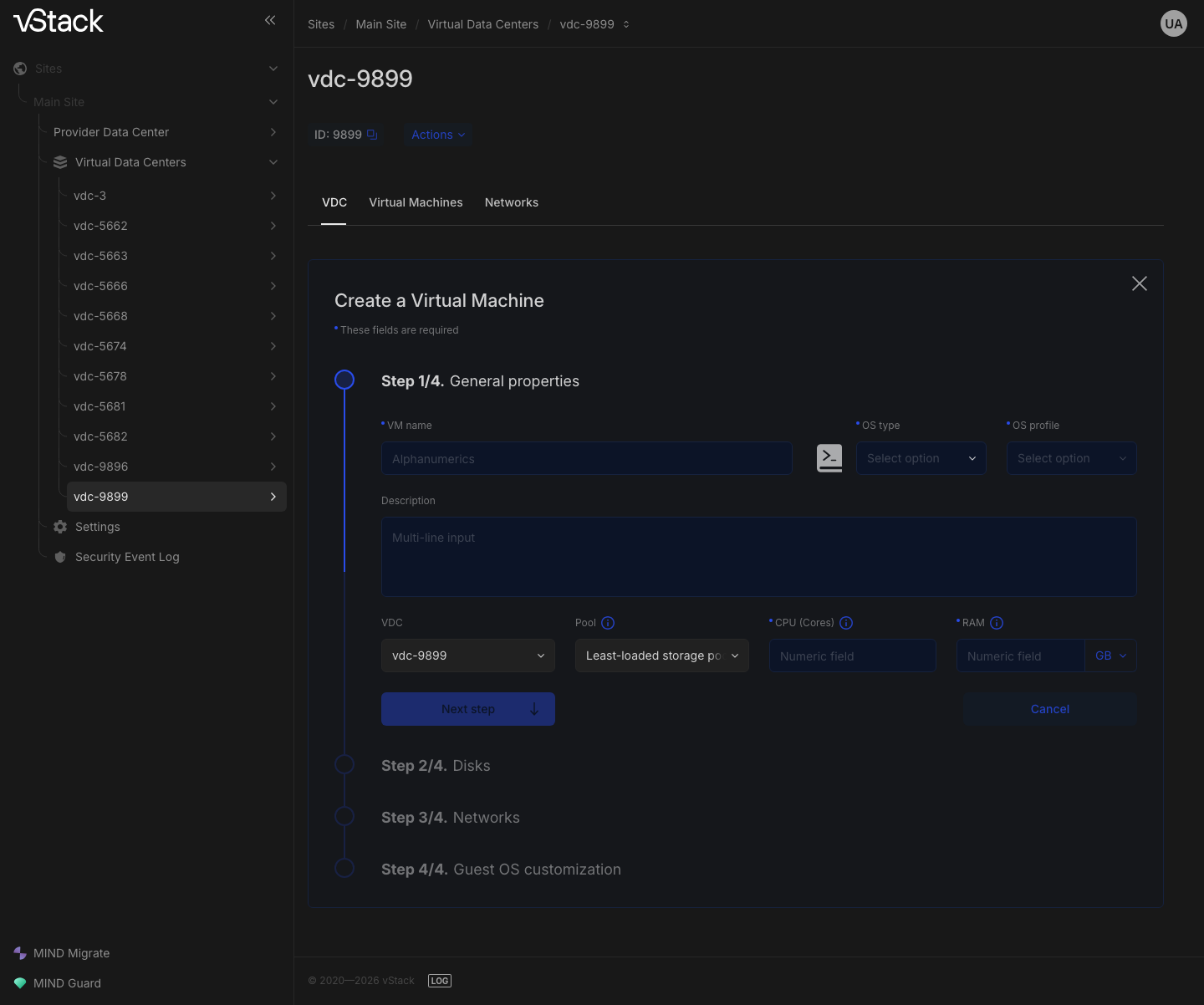
Open the required VDC, click Actions, and select Create a VM to open the Create a Virtual Machine wizard. The same Actions → Create a VM item is available on the All Virtual Machines page.
Step 2. Set the name, placement, and resources
On the first step, enter a name: the first character must be a Latin letter or digit; subsequent characters can be letters, digits, periods, underscores, and hyphens, up to 128 characters in total. Check the selected VDC and placement method: the default is Least-loaded storage pool, which tells vStack Center to select the least full pool among those with an active copy of the selected image. Select a specific pool only if you know that its image copy is active. The numeric fields set the vCPU count and memory size; the unit of measurement is GB. The Next step button becomes available when the required fields are filled in; use it to continue.
Step 3. Select an OS profile
Profile selection has two stages: first select the OS type, then a profile within that type. The second list becomes available after you make the first selection.
The profiles you see depend on your role. Cluster master sees all profiles; a VDC administrator sees profiles shared across the cluster and those assigned to their VDC; a subject without a VDC sees only shared profiles. Another VDC's private image does not appear in the list.
Each profile has its own minimum size for the first disk, defined by the image. Creating a disk smaller than this minimum is rejected.
The profile image must be distributed to at least one storage pool: a pool without an active image copy cannot be used to create the VM. Distribution across pools and the image's own stage (receiving, active, partially active, failed, being deleted) are shown in the image catalog. Viewing it requires the catalog viewing privilege with VDC scope.
Step 4. Define disks, networking, and guest settings
Next, the wizard asks for the VM's devices and guest settings:
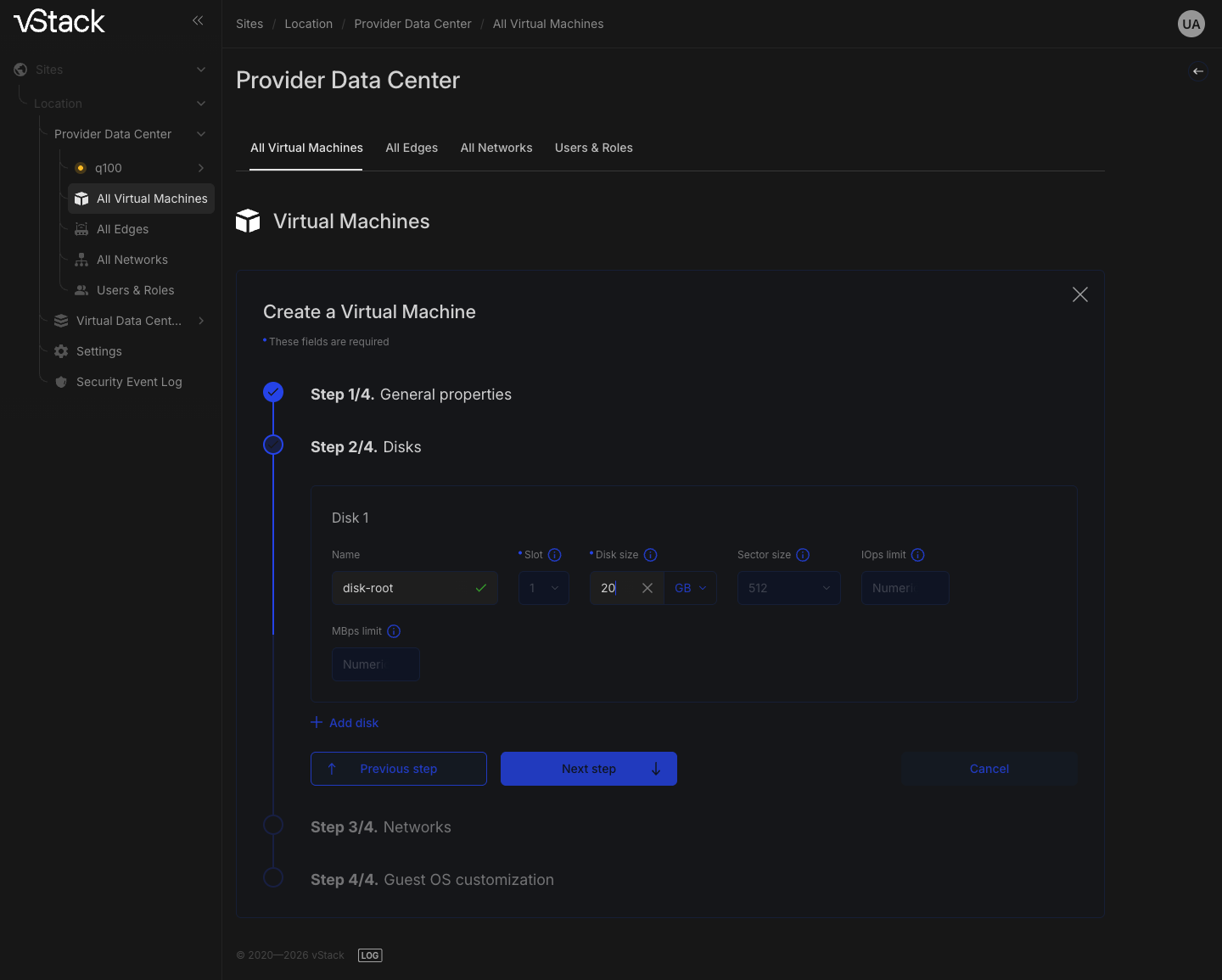
- Disk: size and, if needed, slot, sector size, and label.
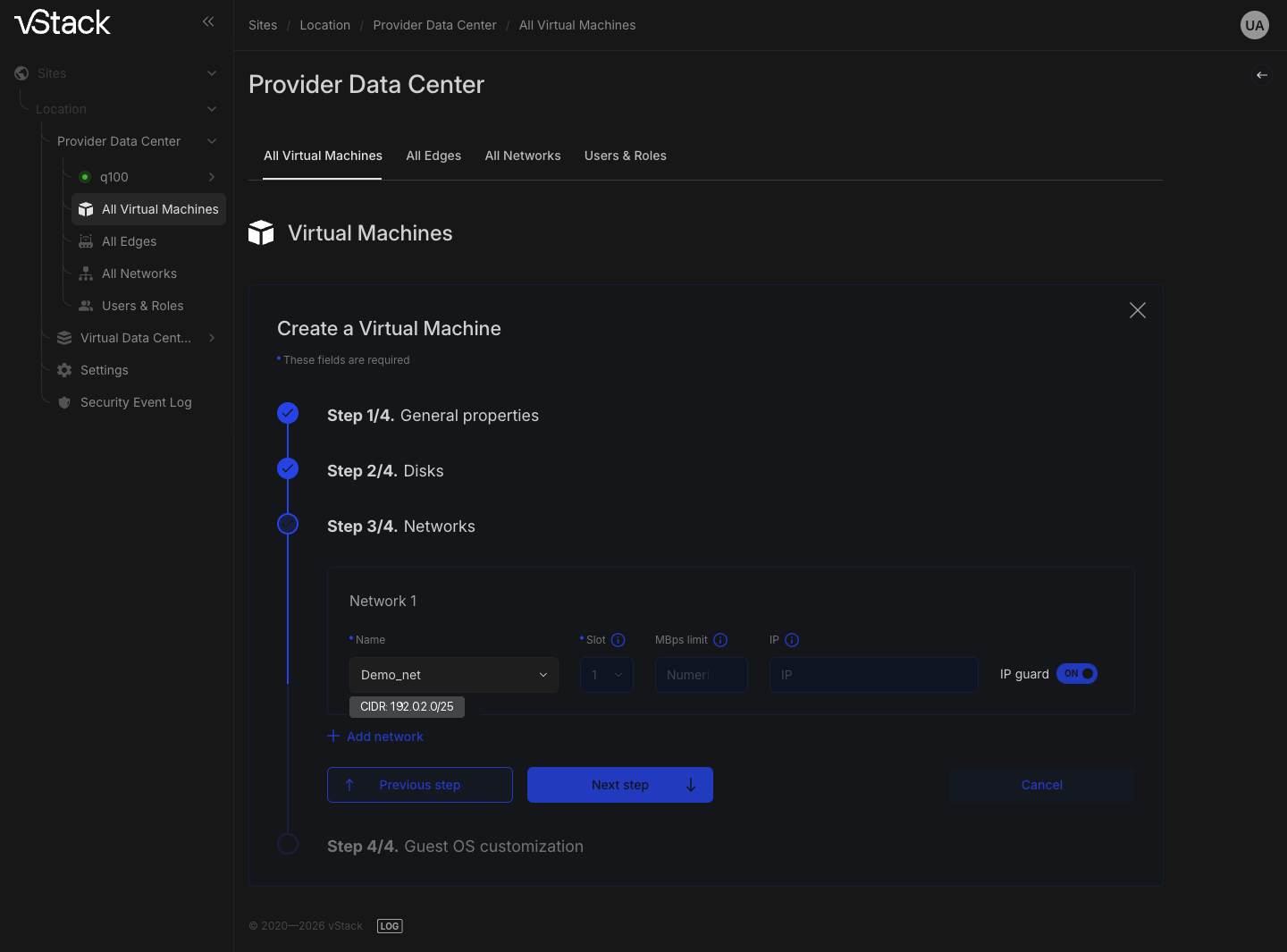
- Network port: a network in the target VDC; a network in another VDC is rejected. Leave IP guard enabled: it can be disabled only on isolated networks and only with the required permissions.
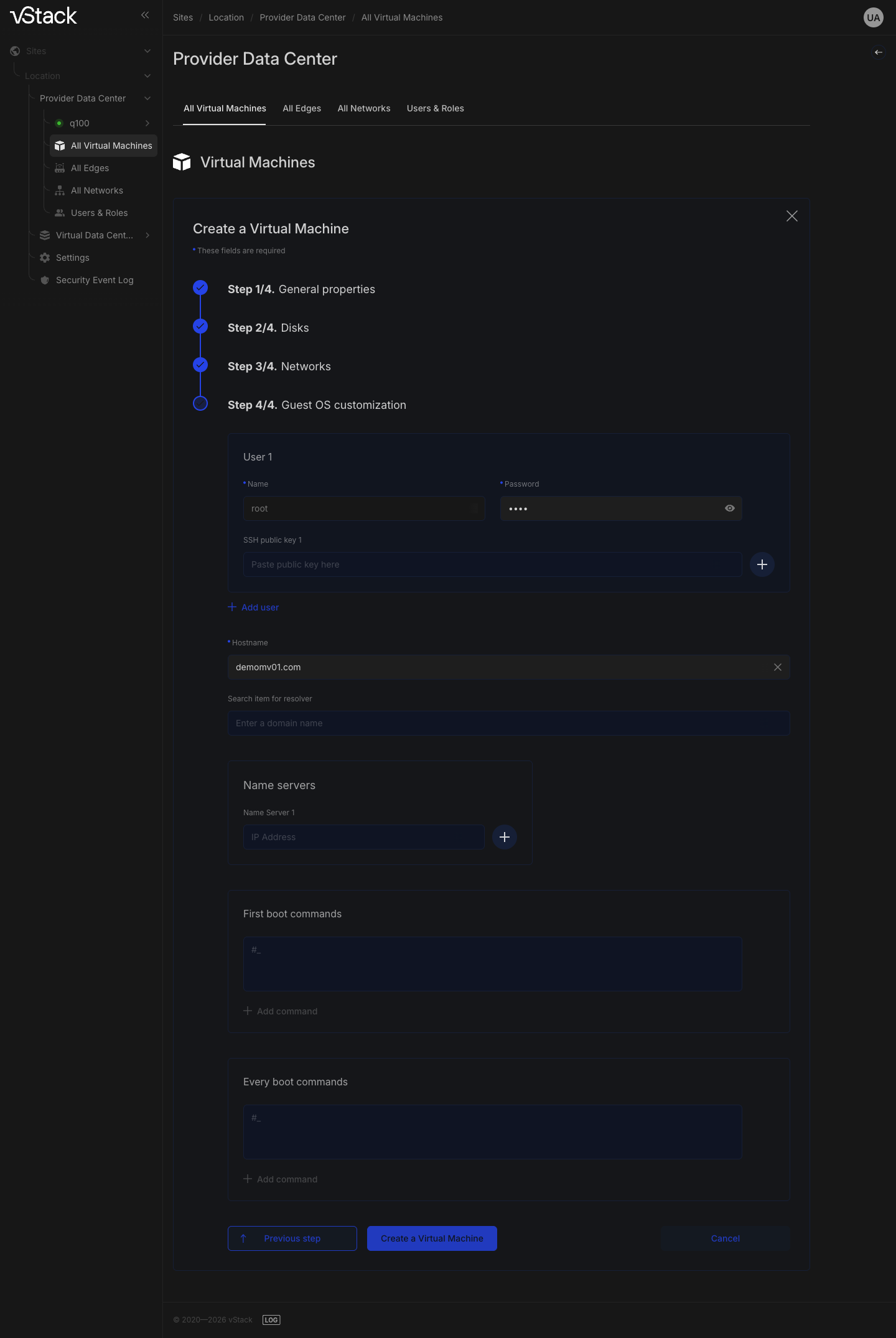
- Guest settings: the hostname is required; a Windows profile also requires the guest administrator password.
Value limits checked immediately:
| Field | Limit |
|---|---|
| VM name | 1–128 characters: the first character is a Latin letter or digit; subsequent characters can be letters, digits, periods, underscores, and hyphens |
| Memory (RAM) | At least 512 MB and no more than the maximum set in the cluster; a multiple of 4 KiB |
| vCPU | From 1 to the maximum set in the cluster |
| Disk size | At least the profile minimum and no more than the cluster maximum; a multiple of the sector size |
| Disk and network port slot | 1–5, with no duplicates |
| Disk sector size | Logical and physical sizes: only 512 or 4096 bytes; the logical size must not exceed the physical size |
| CPU priority | 1–20, default 1 |
| Description | Up to 256 characters |
| Guest hostname | Required |
Step 5. Complete the wizard and wait for the VM to appear
Use Next step to reach the final step and confirm creation. Work then proceeds in two stages: first the storage controller creates the disk datasets, then the node agent assembles the VM. The completed VM appears in the VDC's VM list in the "created" state; it has not yet been started.
Initial guest setup is not complete at this point, which matters for Windows with NVMe disks: until setup is complete, the VM can start only on the pool node, rather than remotely. The ID button on the VM card shows its identifier.
If creation is rejected
| Failure | Reason | Action |
|---|---|---|
-256 image not found | The profile does not exist or is not visible to you; another VDC's private image is reported as missing | Select a profile from the wizard's list |
-259 image not distributed to the selected pool | The specified pool has no active image copy | Leave automatic placement selected or select a pool with an active copy |
-209 unable to select a pool | Automatic selection found no suitable pool | Check image distribution across pools and pool states |
-255 selected pool does not accept data | The pool is not operational | Select another pool |
-213 VDC storage quota exhausted | The disks do not fit within the quota | Reduce the disk size or increase the VDC quota |
-211 cluster vCPU limit exceeded | The specified vCPU count exceeds the cluster limit | Reduce the vCPU count |
-206 memory exceeds the cluster maximum | The size exceeds the cluster limit | Reduce the memory size |
-229 memory size is not a multiple of 4 KiB | Memory is counted in 4 KiB pages | Set the size to a whole number of GB |
-254 first disk size is below the minimum | The disk is smaller than the profile minimum | Increase the disk size to the profile minimum |
-233 a Windows guest requires an administrator password | The Windows profile's guest settings have been filled in without a password | Set the guest administrator password |
-260, -261 incomplete guest settings | The guest section or hostname is missing | Fill in the guest hostname |
-262 network does not belong to the VDC | A network from another VDC is selected | Select a network in the target VDC |
-263 disabling ip_guard is available only for Isolated networks | IP guard is disabled on a network of another type | Leave IP guard enabled |
-207 no role in the target VDC, -403 access denied | Insufficient permissions | Request a role in the target VDC |
How to delete a VM
The Cluster master role has full access to deletion; other users need a role with
role_id ≤ 2 in the VM's VDC. Open the VM card, click Actions, and select
deletion.
The sequence is as follows: vStack Center locks the VM, moves it to the "being deleted" state, asks the node agent to stop it, then instructs the storage controller to delete the datasets. Only then does it remove the VM records from the cluster. If the datasets are already missing, the VM is deleted as an orphaned record; the deletion message includes the orphan marker.
Deletion is rejected if the VM has existing CoW clones: error -2604 includes a
list of clones with their identifiers and names. Delete the clones first, then the
source. Other failures: -309 means the VM is locked by another operation, -305
means the VM is outside your visibility scope, and -403 means insufficient privileges.
How to move a VM to another VDC
Moving changes the VM's VDC membership without moving its data: the disks remain
on the same pool. Cluster master can move any VM; an ordinary user needs a role
with role_id ≤ 2 in both the source and target VDCs. Select the VM and specify
the target VDC.
The main restriction on moving is networking. vStack Center checks the networks of
all VM ports against the target VDC's networks and rejects a mismatch (-5020)
with a list of missing networks. To resolve this, create the missing networks in
the target VDC or disconnect the VM from them before moving it. Permission failures
return code -403 and concern two different VDCs: a missing role or permissions
in either the source or target VDC. Check both.
See also
- How to manage VM power and connect to the console — how to select a node and start a newly created VM
- How to migrate and clone a VM — a quick copy of an existing VM instead of creating one from scratch
- Virtual machine lifecycle — the statuses a VM enters after creation
API methods
The API operations for this page are vm-profiles, golden-images-list, vms-create,
vms-remove, and vm-change-vdc—see the
API reference.