How to manage VM power and connect to the console
A power command in vStack Center is a short transaction rather than a toggle. vStack Center checks permissions, the VM state, VDC (virtual data center) quotas, and cluster overcommit, selects a node, locks the VM, records the desired state, and sends the command to the node agent. The lock is released when the agent responds; until then, other operations on this VM are rejected.
Starting with 3.2.0, another step precedes startup: vStack Center asks the nodes whether the VM is already running somewhere. Previously, the decision relied only on the Center database record. If that record differed from reality, the command was sent to a second node, and two hypervisors wrote to the same disk. The polling rules are as follows:
- The VM is running on another node: startup is rejected with code
-461. The node number is deliberately omitted from the message: a tenant should not learn the cluster topology from an error message. The node is recorded in the service log. - The VM is running on the node targeted by the start command: the usual
-457"already running" error is returned. - The nodes remain silent, return an unexpected response, or do not respond at all: startup is not blocked. An unavailable node must not prevent VMs from starting after a failure, which is exactly the scenario that startup is needed for.
All nodes are polled concurrently within a shared time budget (10 seconds by default), delaying the start response by that amount of time. Automatic VM recovery follows the same rule.
Node selection is the most significant part of startup. In NVMe disk mode
(nvme = true), disks are accessible over the network, so a VM can start on any
online node: if no node is explicitly selected, vStack Center selects the least
loaded node itself. With virtio-blk (nvme = false), the disk is visible only to
the node hosting the pool, and startup anywhere else is rejected.
The console works differently: vStack Center does not query the node. It reads the cluster credentials, returns a console address with a one-time token, and first resets previous connections to that address and port. A new session disconnects the previous one.
VM operations are accessed through the Actions button, available both on the VM card and in the VM list.
How to start a VM
Access: Cluster master can start any VM in the cluster; an ordinary user can start
VMs in a VDC where they have a role with role_id ≤ 3.
-
Make sure the VM is stopped or newly created: its state appears in the State column of the VM list and on the VM card.
-
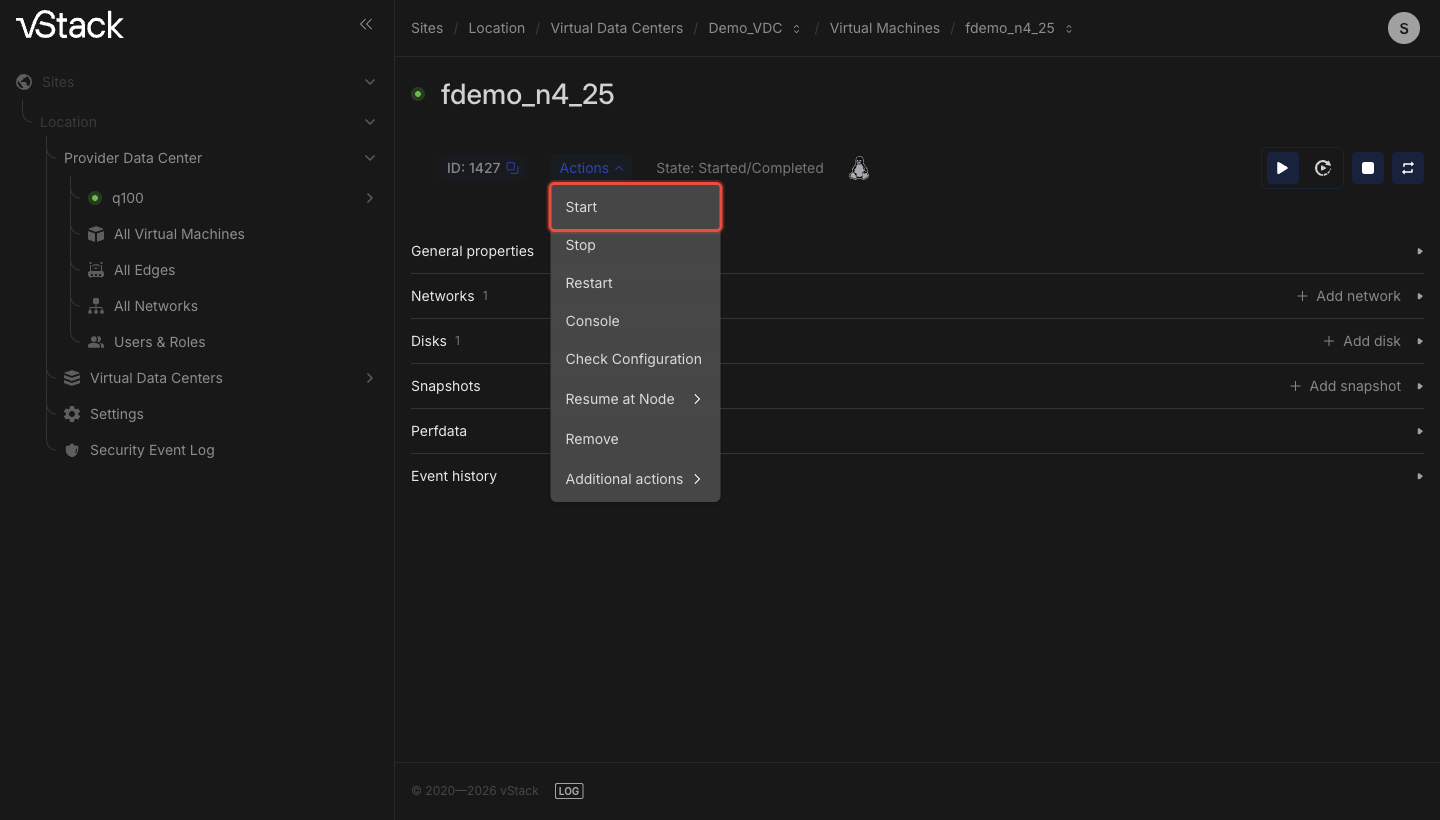
Open the VM card (or find it in the list), click Actions, and select the start command.
-
Select a node or leave automatic selection enabled. You can also set the hard shutdown timeout (0–999 seconds) and disable ACPI shutdown; the node number ranges from 1 to the number of nodes in the cluster.
-
Wait for the VM state to change to "running". The node on which it started appears on its card, whether you selected the node explicitly or automatically.
If startup fails
| Failure | Reason | Workaround |
|---|---|---|
-460 virtio-blk VM: start only on the pool node | The VM has nvme = false, and the selected node is not the pool node | Start on the pool node: leave automatic selection enabled |
-459 Windows: finish setup on the pool node before remote start | Windows with nvme = true; initial guest setup is incomplete | Complete guest setup on the pool node, then start remotely |
-458 No available online nodes for VM placement | No online node is available for automatic placement | Wait for nodes to return or select a node manually |
-455 VM has suspended status | The VM is suspended | Resume it instead of starting it |
-457 Unable to start VM having admin_status==N already | The VM is already running, including as reported by the node targeted by the start command | Check the VM state on its card |
-461 VM is running on another cluster node; unable to start | A node reported that the VM is running on a node other than the one targeted by the start command. Starting with 3.2.0 | Find where the VM is running and stop it there; the node is named in the service log |
-409 VM is locked | Another operation is in progress | Wait for it to finish; the Cluster master role can release a stuck lock |
-413, -414, -415 | The VDC storage, RAM, or core quota is exhausted | Increase the quota or free resources |
-440 Cluster RAM has been depleted | The cluster has insufficient RAM, accounting for overcommit | Free cluster memory |
-452 Remote disk attach error | NVMe-oF disks could not be attached during remote startup | Start on the pool node and check the node state |
-442, -443 | A nonexistent node was selected | Check the cluster's node list |
How to stop and restart a VM
Stopping mirrors startup, but without quota checks: the VM is already accounted for. vStack Center identifies the node on which the VM is running, locks the VM, and sends the stop command. It is accessed in the same way, through Actions on the VM card or in the list.
The stop command accepts a suspended VM just as it accepts a running one.
Restarting follows the startup logic with two differences: quotas are checked without adding the VM's resources, and overcommit is checked without subtracting its RAM from free RAM. The current node is used.
Both operations have a hard shutdown timeout and an option to disable ACPI. If the guest does not respond to ACPI, a hard shutdown after the timeout is the normal path; disabling ACPI skips the attempt at graceful shutdown altogether.
What happens to a VM after a failure
In addition to its current state, vStack Center stores an intent for each VM: whether it should be running. Starting sets the "should be running" intent; stopping by an administrator clears it. Automatic recovery after a failure brings back only VMs with the "should be running" intent.
Starting with 3.2.0, Center distinguishes why a VM shut down and clears the intent in only one case: when the guest shuts down gracefully. After a hypervisor crash, a guest-requested restart, a node shutdown, or a hard shutdown after a timeout, the intent is preserved and the VM starts again. Previously, any of these events marked the VM as stopped by an administrator, and it remained off after a failure.
The node agent reports the shutdown reason. An agent released before vStack OS 3.2.0 does not send it. On those nodes, the previous behavior remains: after a failure, the VM is considered stopped until the agent is updated.
Recovery is triggered by an event, rather than a timer:
- The VM crashes while its pool is operational: recovery begins immediately.
- The pool is not ready yet: the VM waits for storage to come up and starts with the pool's other VMs.
- The first start attempt fails because of a node failure: Center retries it, no more than three times. If those attempts also fail, retries stop, but the intent remains, and the next pass triggered for any other reason will attempt to start the VM.
- Resources are insufficient for startup: the VM retains the "should be running" intent, the reason is recorded in the service log, and startup is not retried on a timer.
Recovery does not cause a duplicate start: it skips a VM whose startup is already in progress or one running on any node. The same node polling rule applies as for manual startup.
How to suspend and resume a VM
Suspension saves the memory state and requires suspension to be enabled in the
cluster settings. Access: Cluster master has full access; other users need
role_id ≤ 2. The command is accessed through Actions; the VM moves to the
"suspended" state.
When resuming, specify the target node explicitly. Placement restrictions are
the same as for startup: with nvme = false, the VM can resume only on the pool
node (-15152), and Windows with nvme = true cannot resume remotely until
initial setup is complete (-15151). If suspension is disabled in the cluster
settings, suspension returns -15005, and resuming returns -15105.
Bulk pool operations
For node maintenance, there are paired pool-level operations: suspend all VMs in the pool and resume them. Only the Cluster master role can use them, from the pool card, which also has an Actions button. You can also specify whether to restore the VMs on error.
The command is sent directly to the node serving the pool. Failures: -403 means
the operation was requested by a role other than Cluster master (the same code
for both suspending and resuming), -15203 and -15303 mean an invalid pool name,
and -15205 and -15305 mean suspension is disabled.
How to open the console
The console opens through Actions on the VM card, immediately, without contacting the node. Access: Cluster master can access any VM; an ordinary user can access VMs in their VDCs.
There are two console types: graphical (VNC), the default, and text. Each type has its own port. If the VM is running on a node other than its pool node, the console address points to the public address of the node on which the VM is running.
Keep the following in mind:
- The link is effectively single-use: each time the console opens, it resets previous connections to the same address and port. Two simultaneous console sessions to one VM cannot remain connected.
- Error
-3103means the VM was not found within your visibility scope. - vStack Center does not check whether the VM is running: the address is returned from the cluster credentials. If the connection cannot be established, check the VM and node states.
How to release a lock
The lock flag clears automatically when the agent responds. If the agent does not respond and the flag remains set, only the Cluster master role can clear it.
Error -25903, "VM unlock method available for Cluster master only", means another
role requested the unlock. Release the lock only after confirming that the
previous operation has actually finished; otherwise, a late agent response will
overlap with the new command.
See also
- Virtual machine lifecycle — what the statuses mean and why a VM has two states
- VNC console does not open — troubleshooting when the console does not open
API methods
The API operations for this page are vms-start, vms-stop, vms-restart,
vms-suspend, vms-resume, vms-suspend-pool, vms-resume-pool, vm-console,
and vm-unlock—see the API reference.