How to configure roles and privileges
The seven fixed roles cover typical use cases, but not all of them. When you need access such as "view the entire VDC and restart machines, but create nothing," build a custom role: select privileges from the registry, set the VDC scope, and assign the role to a user in a specific VDC (virtual data center).
The workflow is always the same: first identify the required privileges, then build the role, then assign it. Reversing the order by creating a role first and then looking for privileges leads to a role with excessive permissions. Limiting it later takes more effort than building it precisely from the start.
Prerequisites
- The
Cluster masterrole: only the cluster administrator can create, modify, and delete roles and assign them to users. - A list of operations the role must grant access to; this determines the required privileges.
- The VDC to which the role is restricted, if it has a scope.
- The account that will receive the role. For account creation, see How to manage users.
Step 1. Review the privilege registry
-
Open
Provider Data Center→Users & Rolesand go to theRolestab. The table has theName,scope,Creator,Created, andModifiedcolumns. Thescopecolumn shows the role's scope, andCreatorshows who created it; fixed roles have no creator listed. -
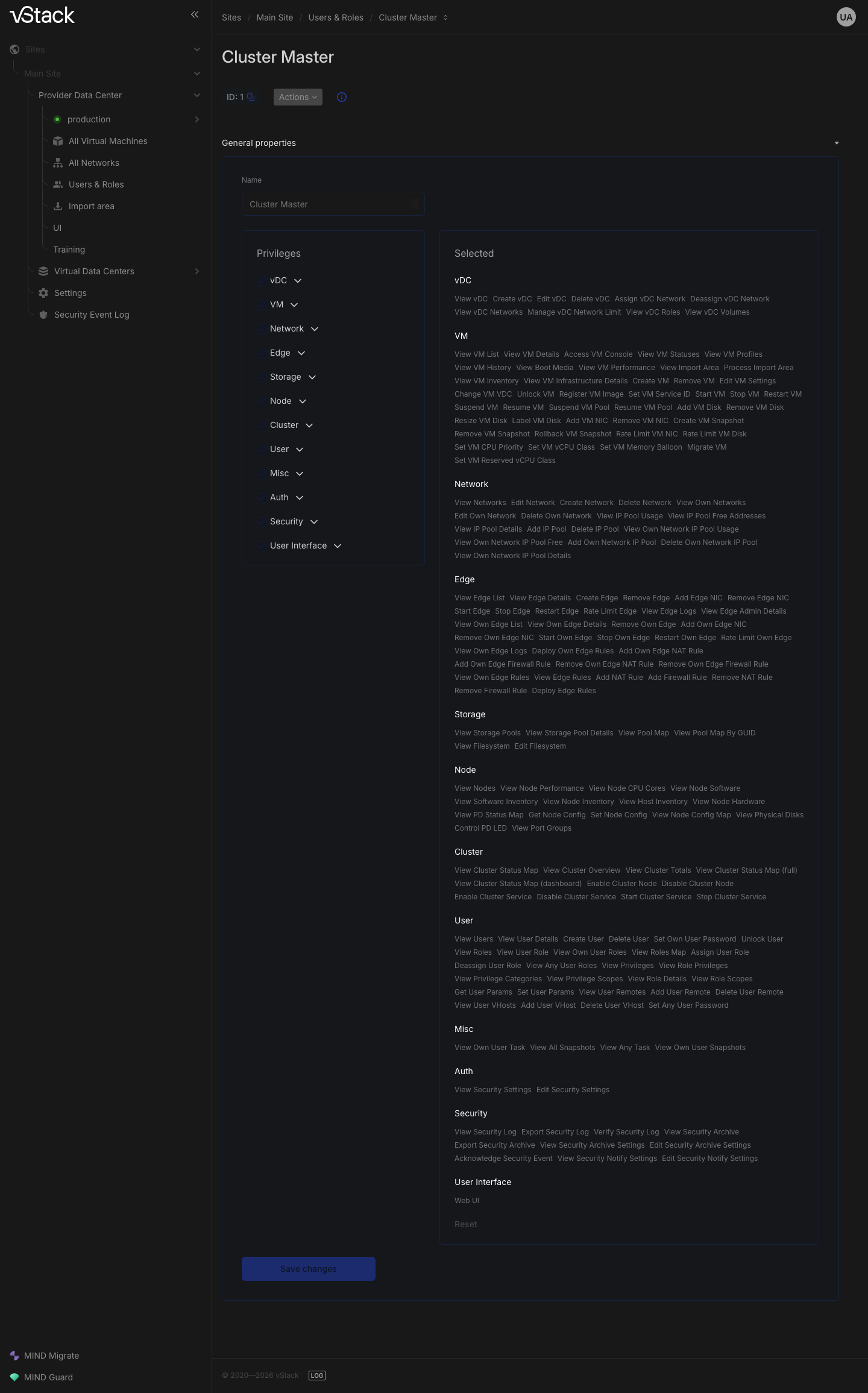
Open the role closest to what you need. On its card, privileges are grouped into sections:
vDC,VM,Network,Edge,Storage,Node,Cluster,User,Misc,Auth,Security, andUser Interface. These sections group the registry for readability; they do not affect permission checks. -
Review the sections and note the privileges you need. A fixed role's existing set is a useful starting point: take it and remove what you do not need.
There are two types of scopes, with a fundamental difference between them.
| Scope | Suitable for a custom role | Meaning |
|---|---|---|
VDC (vdc_id) | yes | the role applies in the VDCs where it is assigned |
object creator (creator) | no | the permission applies to objects created by the user |
For a custom role, the "own objects only" restriction is set through existing Own
privileges, such as Edit Own Network, rather than through the role's scope.
Step 2. Create a custom role
-
On the
Rolestab, clickActionsand selectCreate role.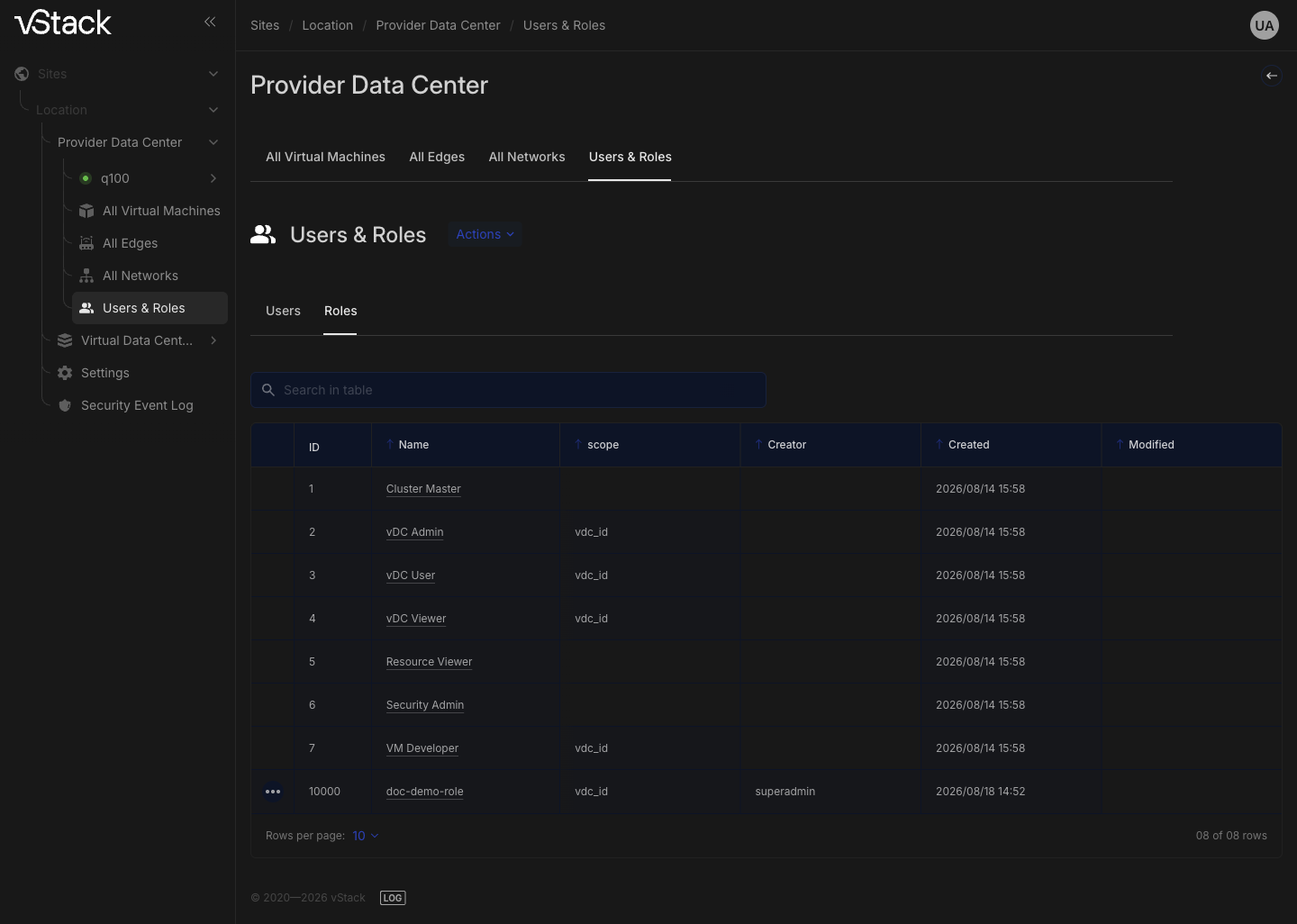
-
Enter a role name: it must be unique within the cluster and no longer than 64 characters.
-
Select privileges in the sections. An empty set is not accepted; at least one privilege is required. Role management privileges cannot be granted to a custom role, because it could then extend its own permissions.
-
Set a VDC scope if the role should not apply to the entire cluster.
-
Confirm creation and verify that the role appears in the
Rolestable.
Custom role identifiers start at 10000, and the platform uses this range to distinguish them from fixed roles.
Step 3. Check the role's configuration
-
Open the role on the
Rolestab. The card heading is the role name, with its identifier next to it. -
Review the privilege sections and compare the selections with what you configured.
-
Return to the
Rolestab and check thescopeandCreatorcolumns: the scope must match what you configured, and the creator must be your account.
For a role built entirely from Own privileges, the scope column is empty. These
permissions are restricted by the object creator, so they have no VDC scope.
Step 4. Assign the role to a user
A role is assigned within a VDC rather than without a scope: if the role has a VDC scope, you must specify the VDC.
-
Open the account in the
Users & Rolessection. -
Add the role and specify the VDC in which it applies.
-
Verify that the new assignment appears in the account's role list together with its VDC.
Remove a role in the same place, identifying it by the complete combination of
user, VDC, and role: when removing the role, specify the same VDC in which it was
assigned. Only Cluster master can assign and remove roles, and these operations
are not permitted for built-in accounts with identifiers below 10.
How to modify a custom role
-
Open the role on the
Rolestab. -
Select new privileges and clear those you no longer need. You can also change the role name here.
-
Click
Save changes. The adjacentResetbutton discards unsaved changes.
The scope is replaced in full: the specified set becomes the new scope rather than extending the previous one.
A fixed role cannot be modified: the Actions, Reset, and Save changes
buttons on its card are disabled, and an attempt to save changes outside the
interface is rejected with "Cannot modify a fixed role".
How to delete a custom role
-
Check which users have the role assigned: they will lose the permissions it granted.
-
Open the role on the
Rolestab, clickActions, and select deletion. -
Confirm deletion and verify that the role disappears from the
Rolestable.
Deletion cascades: the role's privileges, scope, and all assignments of that role to users are removed along with it. The users themselves remain. A fixed role cannot be deleted.
How to view a user's roles
Any user can see their own roles; only Cluster master can see another user's
roles. Assignments can be viewed from two perspectives: the account lists its
roles together with their VDCs, while the Roles tab shows each role's privileges
and restrictions.
Read each assignment as a role and VDC pair. The same role in different VDCs
represents separate assignments, and each must be removed separately. A role
without a scope has no object restrictions and applies to the entire cluster;
this is how Cluster master works.
If an operation is rejected
| Code | Reason | What to do |
|---|---|---|
-22500 "Access denied: only Cluster Master can create roles", -22510, -22520 | the role lacks role management permissions | perform the operation as Cluster master |
-22501 "Privileges list must not be empty" | the role is being created with an empty privilege set | select at least one privilege |
-22502, -22513 "Role management privileges cannot be assigned to custom roles" | the set contains a role management privilege | clear it; role management remains reserved for Cluster master |
-22503, -22514 "Privilege ID not found" | the privilege does not exist in the cluster registry | select privileges from the sections on the role card |
-22504, -22515 "Scope ID not found" | the scope does not exist in the cluster | set a VDC scope |
-22505, -22517 "Self-referencing scope cannot be assigned to custom role" | the scope includes the object creator attribute | keep only the VDC; use Own privileges for the "own objects only" restriction |
-22506, -22516 "Role with name already exists" | the role name is already in use | choose another name, up to 64 characters long |
-22511 "Cannot modify a fixed role", -22521 "Cannot delete a fixed role" | a fixed role cannot be modified or deleted | create a custom role with the required set of privileges |
-22512, -22522, -22530, -22540 "Role not found" | the role no longer exists; it may have been deleted from another session | refresh the Roles tab |
-403 "Access denied" | a user other than the cluster administrator is assigning or removing a role | perform the operation as Cluster master |
-22320 | a role assignment for a built-in account with an identifier below 10, or the role is already assigned | use a regular account; view its current assignments in the account itself |
-22421 | removing a role from a built-in account | role assignments for built-in accounts cannot be changed |
-22420 "Specified user has no specified role assignment" | the role and VDC pair does not match an existing assignment | check the account's role list and specify the same VDC |
-22204, -22205 | the account was not identified: the request was sent without an identifier | return to the Users tab and reopen the account |
See also
- Privileges and scopes — vStack Center access model.
- Account creation and passwords — How to manage users.
- Complete field sets and a summary of error codes — Fields and error codes for access methods.
API methods
API operations covered on this page: privilege-categories, privilege-list,
privilege-scopes, role-privilege-list, role-create, role-get,
role-scopes, role-list, role-set, role-delete, user-role-assign,
user-role-deassign, user-role, user-roles, user-roles-v2,
user-roles-map — see the API reference.