How to convert a VM to an image
When to use
When a configured machine needs to be replicated: convert it into an OS image and create new VMs with the same disk contents from it.
This is a conversion, not a copy. The VM's boot disk becomes a catalog image, and the VM itself and all its snapshots are deleted. The disk is not copied, so the image is ready quickly — in the time it takes to rename a volume rather than to move gigabytes. There is no way back: an image cannot be turned back into a VM.
The image appears on one pool — the pool where the VM's disk was. Machines are created from it on that pool.
Not suitable if the VM must be kept: the machine disappears in any case. Not suitable for a machine with data disks either — only the boot disk goes into the image, and conversion does not accept a VM with other disks.
Prerequisites
- Privileges. Both are required:
Create Image From VMandRemove VM, each granted globally or in the VDC (virtual data center) of this VM. Privileges from different VDCs do not add up. To see the menu item and follow progress in «Image library», you also needView Image Catalog. Only the Cluster master role creates an image shared across the cluster: it needs both privileges globally. - The VM is stopped. Conversion does not accept a running machine.
- The VM is not busy with another operation or a migration.
- The VM has only the boot disk. Detach or delete data disks.
- No machines are cloned from the VM. Delete those clones first.
- The VM is not itself a thin clone of another VM. A machine created by cloning another machine cannot be converted. A machine created from a catalog image is fine.
- The VM is not a service VM. Cluster service machines, such as edge routers, cannot be converted.
- The guest OS is prepared. Otherwise new machines from the image inherit the source machine's identity and fail first-boot setup. See the guides for Windows and for Linux.
Steps
-
Prepare the guest OS and stop the VM following the guide for Windows or Linux.
-
Open the VM card, click «Actions», and in the «Additional actions» submenu select «Convert to image». While the VM is running, the item is inactive with the hint «Stop the VM first»; for a thin clone of another VM, with the hint «A clone of another VM cannot be converted to an image»; during a migration, without a hint. Without any of
Create Image From VM,Remove VM,View Image Catalog, and for a service VM, the item is not shown.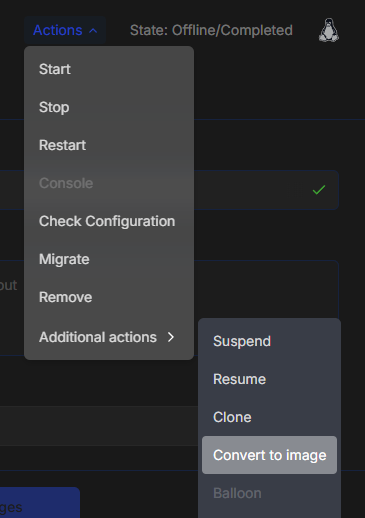
-
Fill in the form.
Field What to enter «Image name» up to 64 characters: lowercase Latin letters, digits, dot, hyphen, underscore. The name may match another image's name: images are told apart by their identifier «Description» optional, up to 64 characters If the VM name already fits these rules, the form fills it in.
-
Choose where the image will be available. The Cluster master role sees the «Where the image will be available» choice:
- «Only data center «‹VDC name›»» — the image belongs to the source VM's VDC and is visible only to that VDC and the Cluster master. This option is selected by default;
- «Whole cluster» — the image is shared across the cluster. The form warns: «Keys, passwords and other data inside the VM become available to every data center». Everything left inside the guest OS becomes available to every VDC that creates a VM from this image.
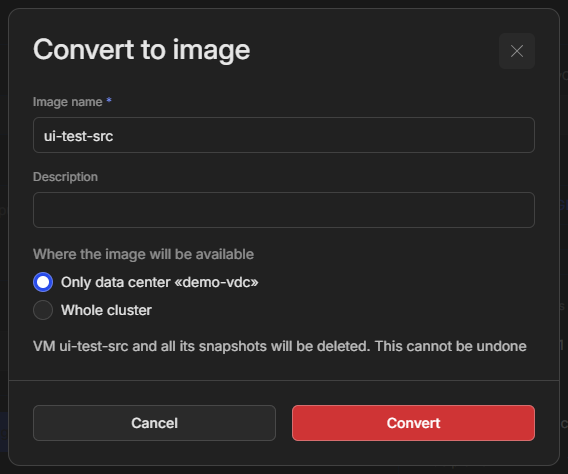
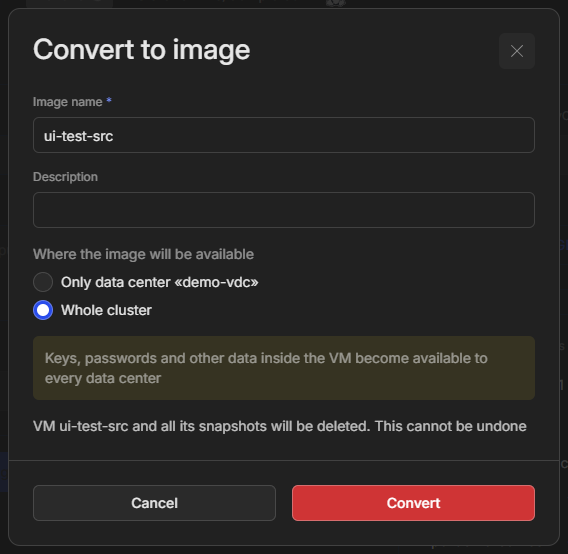
A VDC administrator does not see the choice: their image always stays in the source VM's VDC, and the form says «Available in this VM's data center».
-
Confirm. The form warns: «VM ‹name› and all its snapshots will be deleted. This cannot be undone». Click «Convert». The «Cancel» button leaves the VM unchanged.
-
Wait for the outcome. Once the request is accepted, the notification «Conversion of VM ‹name› has started» appears, and the «Image library» section opens with the new image selected. While conversion runs, the image is in the «Importing» state — without a copy progress bar, since there is nothing to copy. The image then moves to the «Available» state, and the VM disappears from the machine list.
Verify the result
| What to check | Expected |
|---|---|
| The image in «Image library» | state «Available», the image is on the source VM's pool |
| The source VM | gone from the machine list together with its snapshots |
| Security log | events config.image_from_vm_initiated, vm.converted_to_image, vm.deleted, and config.image_from_vm_done |
Create a new VM from the image on the same pool and make sure it boots and receives its own host name and password.
Troubleshooting
Conversion did not start
A refusal arrives before any change: the VM, its disks, and its snapshots stay as they were.
| Code | Meaning | What to do |
|---|---|---|
-48014 | the VM is not stopped | stop the VM and retry |
-48015 | the VM is busy with another operation or is already being converted | wait for the operation to finish; do not resend |
-1611 | a migration is running for the VM | wait for the migration to finish |
-48017 | the VM has data disks; the interface lists them: «Detach or delete the data disks and retry» | detach or delete those disks |
-48018 | other machines are cloned from the VM; the interface lists them: «Delete the VMs cloned from this one first» | delete the clones |
-48023 | the VM is a thin clone of another VM | cannot be converted; use a machine created from a catalog image |
-48016 | the VM is a service VM | cannot be converted |
-48013 | the VM is not found or not visible to the caller | check the VM and the access scope |
-48021 | the VM changed VDC during the operation | retry |
-403 | insufficient privileges; the interface says «You need both permissions: create images and delete this VM» | obtain both privileges in the VM's VDC or globally; for «Whole cluster», both globally |
-503 | the security log did not accept the intent record | restore the log and retry |
-32602 | the description is longer than 64 characters or the name breaks the rules | fix the form fields |
Conversion failed after acceptance
The image moves to the «Failure» state and shows the reason. In every case the VM and its boot disk are intact, the VM is stopped and unlocked, but the VM's snapshots may already be deleted.
Reason (fail_reason) | What happened | What to do |
|---|---|---|
snapshot_held | a backup holds a VM snapshot; the interface says «A backup holds a VM snapshot…» | wait for the backup to finish and retry |
hygiene_failed | the VM snapshots could not be deleted | retry; if the failure repeats, contact support |
rename_refused | the storage node refused to rename the volume — for example, the storage agent on the pool's node does not support renaming | check the storage agent version on the pool's node and retry; if the refusal repeats, contact support |
conversion_interrupted | the cluster dispatcher restarted before the volume rename | retry |
For the last three, the interface says «Conversion failed. The VM and its disk are intact; its snapshots may be deleted». The failed image row can be removed like any other image.
The VM and the image are stuck
If a node fails in a way that requires manual investigation, the image stays in the «Importing» state and the VM stays locked. After an hour, the VM status becomes «Delete failed». Contact support.
No reply arrived
If the reply is lost on the way (gateway timeout -10500, broken connection),
do not resend the request and do not click «Convert» again in the form that
stays open. While conversion runs, a repeat gets «VM is not stopped» or «VM is
busy», and after a failed conversion it starts a new one. Close the form and
find the new row with this name in «Image library» — it shows the conversion
progress.
The image cannot be removed
A VM created from a catalog image is linked to it: its disk is a clone of that image. After conversion the link flips. The new image becomes the root of the chain, and the source catalog image becomes its dependant. That is why the new image cannot be removed while the source image exists. On removal, the interface names the visible holder images in the «Dependent images» list, and when they are not visible it says «Another image depends on this one».
See also
- OS image library — the catalog model, image ownership and visibility.
- How to prepare a Windows VM for conversion to an image.
- How to prepare a Linux VM for conversion to an image.
- How to remove an OS image — dependencies and removal.
- How to take VM snapshots and roll back to them.
API methods
The API operations covered on this page are os-image-from-vm,
golden-images-list, golden-image-clones, golden-image-remove, and
security-event-list; see the API reference.