Initial cluster configuration
The installer leaves a working cluster: nodes are up, storage-layer pools are created, aggregates are assembled, and the cluster ID and redundancy are set. The administrator's work then begins, with two distinct parts: checking what was assembled and setting parameters that the platform deliberately leaves to the administrator.
Cluster settings fall into two groups that behave differently. vStack Center stores cluster-level parameters, such as the sign-in policy, and applies them immediately. It sends node-level parameters to the nodes: the UI confirms that the value was sent, but whether the node applied it is visible only on the next read. The practical implication is to read node parameters back after writing them.
Some cluster capabilities are controlled by feature flags. A flag determines
whether an operation is available at all: node configuration works only when
node_config_management is enabled. Check the flag before looking for a
permissions issue.
The sequence below is the minimum required: check the cluster composition, set node parameters, make sure nodes and pool services are enabled, and finalize the sign-in policy. Creating users, networks, and the first VDC is part of ongoing operation and is described in the "Administration" section.
When to use
Immediately after the nodes form a cluster and the web UI becomes available. This procedure is not needed when connecting to an already configured cluster.
Prerequisites
- The cluster is assembled and the web UI responds — see Verify vStack Center deployment. Node installation is described in the vStack OS documentation.
- An account with the Cluster master role: all operations in this section, except reading security settings, are available only to this role.
- For node configuration, the
node_config_managementfeature gate is enabled. - vStack Center version 3.0.5.
Check cluster composition and health
Acceptance checks answer one question: does the cluster see exactly the hardware that was planned, and is all of it operational? Discrepancies are easier to find before virtual machines are added to the cluster.
-
Expand Provider Data Center in the navigation tree and open the cluster page by its name. On the Resources (resources) tab, the table with the Node name, Node health, and Consuming columns must have a row for every planned node, and Node health must be normal for all nodes.
An account with the
View Cluster Status Map (full)privilege can see the full cluster composition. With theView Cluster Status Map (dashboard)privilege, the data is the same, but the UI displays only a summary. -
Compare the total capacity with the design. On the same tab, the cluster shows total and used cores, memory, and disk space.
These metrics are available to the Cluster master and Resource viewer roles.
On a fresh cluster, almost nothing is used, and total cores, memory, and capacity must match the calculation based on the node configurations.
-
Go to the Storage Resources (storage resources) tab. In the ZFS pools table, with the GUID, Name, Health, Consuming, Scrubbing, Resilvering, Current node, and Capacity (RAW) columns, each pool must have Health set to ONLINE and Current node filled in.
This section is available only to the Cluster master role. The cluster collects pool data from the nodes, so the table fills with a short delay. If it is empty, refresh the page.
Set node parameters
vStack Center does not choose node parameters: the administrator sets them, and the cluster sends the values to the nodes. A setting targets either the entire cluster or a single node; in the latter case, only that node receives the value.
Confirmation in the UI means the value was sent to the node, rather than that the node has already applied it. Read the parameters back after writing them.
-
Open node configuration and set the required parameter. The cluster accepts names from its reference list: ZFS tunables
vfs.zfs.*and vCPU limitshw.vmm.vcpu_limit.*. It rejects any other name with code-23122. To send the change to the entire cluster, leave the node unselected; to send it to just one node, select that node.The operation is available to the Cluster master role when the
node_config_managementfeature gate is enabled. -
Read the parameters back and verify that the cluster returns the values you set.
If a write fails, the reason is one of the following: the account does not have
the Cluster master role (-403); the node_config_management feature gate is
disabled (-23110); the parameter set is in an invalid format (-23108); an
unknown parameter (-23121) or a parameter unsupported by vStack Center
(-23122) was specified; the parameter does not have the requested class
(-23123); the parameter is not scalar (-23120); the numeric value is below
the minimum (-23124) or above the maximum (-23125); the cluster could not
retrieve the parameter map (-23109); or the command could not be sent to the
node agent (-23133). The list for reads is shorter: -403, -23110, -23108,
-23121, -23122, -23123, -23109, and -23133. The cluster checks whether
the value is scalar and within numeric bounds only on writes, so -23120,
-23124, and -23125 are returned by writes. The parameter list has its own
code: when the feature gate is disabled, it returns -23301.
Enable nodes and services
A node or service has two state dimensions: administrative and operational.
The administrator sets the administrative state, which is also used to take a
node out of service for maintenance. The operational state shows what is
actually happening to the object. Acceptance checks examine both: they must
match. Cluster services include storage-layer pool services, with names such
as zpool_ssd01, and system services, such as svc_unbound.
All operations in this group are available only to the Cluster master role and execute immediately.
- If a node is disabled, enable it: open the cluster page, select the node, and enable it. The reverse operation takes the node out of service and is also required before maintenance.
- Enable the pool service and start it on the required node. The reverse operations are to stop the service and disable it.
- Return to the cluster composition and verify that the modified object's administrative and operational states match: the node is in service, and the pool service is running.
If a state change fails, the reason is one of the following: the account does
not have the Cluster master role — both nodes and services return the same
error, -403; the node number is in an invalid format (-20122 when enabling
or disabling a node, -20522 when starting a service on a node); or the cluster
rejected the command (-713). The cluster also returns -713 for a command
addressed to a node or service that does not exist in the cluster.
Finalize the sign-in policy
Sign-in settings are the only cluster settings that should be changed before the first users are created: they apply to all accounts immediately. Configuration has two parts: password complexity and protection against brute-force attacks (the number of failed attempts, the counting window, and the lockout duration).
| Parameter | Constraint | What it defines |
|---|---|---|
| Maximum failed sign-in attempts | Integer, at least 1 | How many failed attempts are allowed before lockout |
| Attempt counting window, minutes | Integer, at least 1 | The interval during which the cluster counts failed attempts |
| Lockout duration, minutes | Integer, at least 0 | How long the lockout lasts; 0 means it can only be cleared manually |
| Minimum password length | Integer, at least 1 | A password shorter than this cannot be set |
| Require an uppercase letter | Toggle | A password without an uppercase letter is not accepted |
| Require a lowercase letter | Toggle | A password without a lowercase letter is not accepted |
| Require a digit | Toggle | A password without a digit is not accepted |
| Require a special character | Toggle | A password without a special character is not accepted |
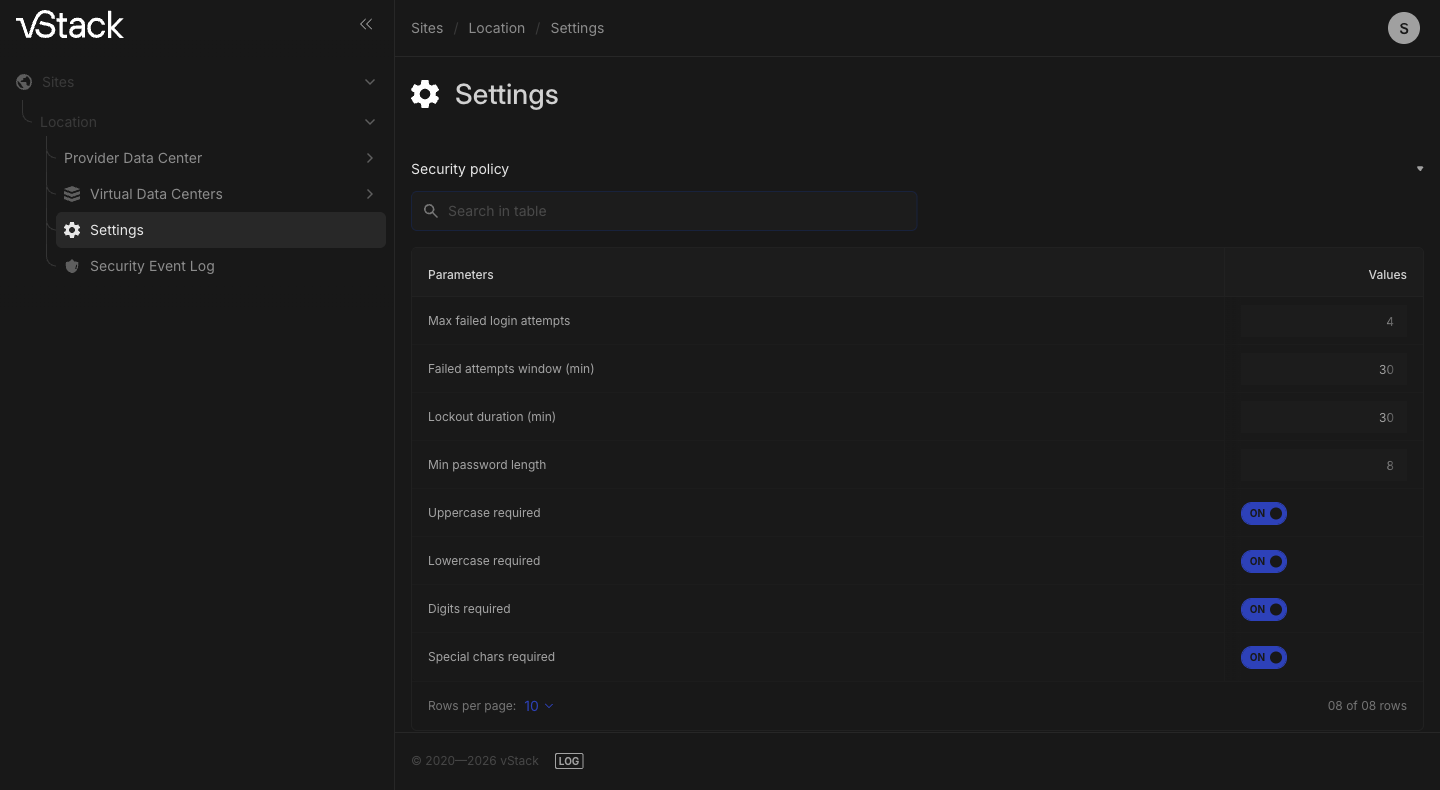
-
Open Settings (settings) and click Security policy (security policy). The form opens with the current values.
All authenticated users can see the password complexity block. Only the Cluster master role can see the brute-force protection settings.
-
Change the required parameters and save the form. Fields you did not change retain their values.
-
Reopen the form and verify that it shows the new values.
Verify the result
The cluster passes acceptance checks if five conditions are met:
- the Resources tab on the cluster page has a row for each node, and Node health is normal for all nodes;
- every pool in the ZFS pools table on the Storage Resources tab has Health set to ONLINE;
- total cores, memory, and capacity match the calculation based on node configurations;
- node configuration returns the parameter values you set;
- the Security policy form shows the sign-in policy you configured.
If it does not work
- Node configuration is unavailable (
-23110on reads and writes,-23301for the parameter list). Thenode_config_managementfeature gate is disabled: node parameters cannot be set until it is enabled. Check the flag state in the cluster configuration. - The command could not be sent to the node agent (
-23133). There is no agent to receive the configuration. Wait for the nodes to boot and check the cluster composition on the Resources tab. - The UI confirmed the save, but the value on the node did not change. Confirmation means only that the value was sent to the node. Read the parameters back; if the old value is returned, repeat the write.
- The value is not accepted (
-23124below the minimum,-23125above the maximum). The numeric parameter is outside the allowed range. Check the bounds and retry. - A node or service does not change state (
-713). The cluster rejected the command: there is no node or service with that number or name, or the command could not be sent to the nodes. Check the node number and service name on the Resources tab and repeat the operation. - The cluster composition or ZFS pools table is incomplete. The cluster
collects node and pool data from the nodes and returns it with a delay.
Refresh the page after all nodes finish booting. If the section does not
open at all (
-403), the account lacks the required privilege. - The account is locked until an administrator intervenes (
-123). A zero lockout duration behaves this way: the lockout can only be cleared manually. Set a value greater than zero if automatic unlock is required. Code-124means a temporary lockout and is returned together with the time until which it remains in effect. - Sign-in fails (
-119). The password is incorrect, or the user does not exist. If the user exists, the error includes the failed attempt count: how many attempts have been counted and how many remain before lockout.
API methods
The operations on this page are available through the API: get-statusmap,
cluster-totals, pools-list, node-config-set, node-config-get,
cluster-node-enable, cluster-node-disable, cluster-service-enable,
cluster-service-disable, cluster-service-start, cluster-service-stop,
auth-security-settings-get, auth-security-settings-set — see the
API reference.
See also
- Hardware and network requirements — vStack OS documentation: the reference for checking the accepted configuration.
- Check cluster hardware and networking — how to verify it through vStack Center.
- Create a VDC with Unified Storage — the next step after cluster acceptance checks.