How to manage Edge state and ports
When to use
When you need to change the state of an existing router or its network connections: connect a new network, remove an unnecessary port, limit bandwidth on a port, or decommission the router.
One rule determines the operation order: a port can only be added to a stopped machine, and rules can only be applied to a running one. Schedule port changes and rule edits in separate maintenance windows, rather than combining them into a single sequence.
Prerequisites
- The Cluster master role for any router in the cluster; the VDC (virtual data center) administrator role for routers they created;
- Removal follows the same rule as starting, managing ports, and limiting
bandwidth: a VDC administrator receives
-403for a router in their VDC that belongs to someone else; - To add a port, a free slot (no more than four ports) and a stopped router VM;
- vStack Center version 3.0.4.
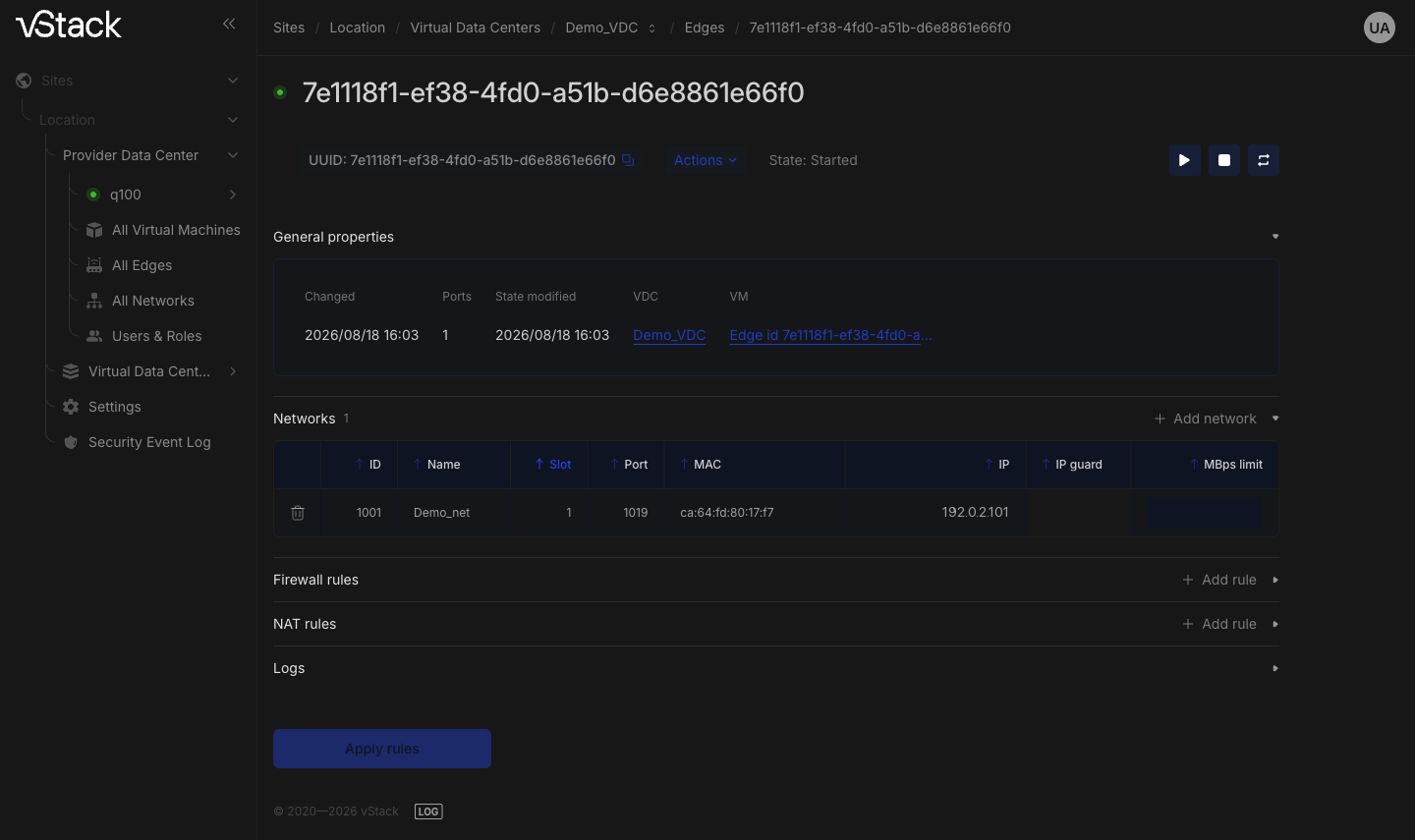
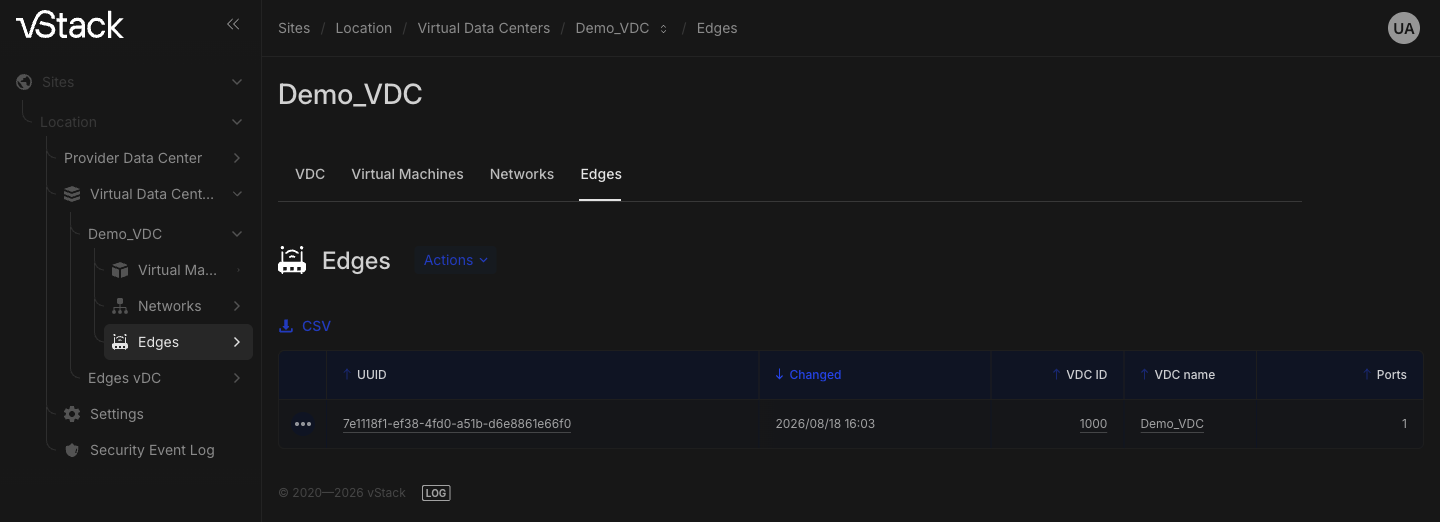
Routers are accessed in the context of a VDC: in the sidebar tree, expand Virtual Data Centers, select the VDC, and go to its Edges section. A list row opens the router page, which contains its state, ports, and rules. Operations are in the Actions menu: in the list row, it contains all operations; on the router page next to UUID, it contains rule application and removal. Starting, stopping, and restarting have dedicated icon buttons on the router page. Asynchronous operation progress is shown in the log panel; open it with the LOG button in the bottom panel.
Steps
Starting, stopping, and restarting
These three operations move the router between states without changing its configuration.
-
Open the router page. Three icon buttons next to UUID start, stop, and restart the router; each tooltip names the operation (Start edge, Stop edge, Restart edge). The same operations are in the Actions menu of the Edges list row.
-
Click the required button and wait for the state to change. The panel confirms success with a message such as "Edge {id} was successfully started", and State next to UUID shows the new state. Until then, the router state is not considered changed.
Adding a port
A new port connects the router to another network. The machine must be stopped; the operation is rejected on a running router.
-
Stop the router with the stop button next to UUID or Stop edge in the Actions menu of the Edges list. Wait until State shows a stopped machine.
Before 3.2.0, a stopped router would start again automatically after a few seconds: Center interpreted its own stop command as an unexpected termination and automatically brought the machine up. This prevented adding a port. Starting with 3.2.0, the router remains stopped.
-
Open the Networks section on the router page and click Add network. The button is available only while free slots remain.
-
Fill in the port row fields:
Form field Required What it specifies Name Yes Network to which the port connects. The selected network's CIDR is shown below the field Slot Yes Slot number. The list offers only free values from 1–4 MBps limit No Port bandwidth limit in Mbps. An empty field means no limit IP No Port IPv4 address. If the field is empty, an address is allocated from the network pool IP guard No IP guard toggle. Enabled by default The form has no IPv6 field: if the network has an IPv6 subnet, an address is allocated from it automatically. Up to eight IPv6 addresses per port can be assigned manually only through the API. The methods are listed at the end of this page.
-
Click Save network. The panel confirms the addition with a message such as "For edge {id} was successfully added nic", then the port appears in the Networks section table.
-
Start the router with the start button next to UUID.
Limiting bandwidth on a port
Bandwidth is limited on an existing port; the router does not need to be stopped.
-
In Networks, find the port row and click the value in MBps limit. It can be edited directly in the table.
-
Enter the limit in Mbps and confirm the edit with the checkmark icon next to the field; the cross icon cancels it. The panel confirms the new limit with "Edge ratelimit was set to {value}".
-
To remove the limit, clear the field and confirm the edit. The panel displays "Edge ratelimit was removed".
Removing a port
Remove a port in the same table: the router is no longer connected to that port's network.
-
Find the rules bound to this port: in the Firewall rules and NAT rules section tables, the Network column identifies the port. Remove these rules and apply the set; otherwise, rules for a nonexistent interface will remain on the router.
-
In Networks, click the delete icon in the port row.
-
Confirm removal in the Are you sure want to remove …? dialog with Remove edge nic. The panel confirms success with a message such as "Nic of edge {id} was successfully removed".
Removing the router
Removal decommissions the entire router: vStack Center removes Edge and all its rules (NAT and firewall), then deletes the router VM. The rules are removed with the router; there is no need to clear the sets separately.
The operation is irreversible: saved rule sets cannot be recovered after removal. If you need the rules for a new router, record them from the Firewall rules and NAT rules section tables before removal.
-
On the router page or in the Edges list row, select Actions → Delete Edge.
-
Confirm removal in the Are you sure want to remove edge …? dialog with Remove.
-
Wait for "Edge was successfully deleted". This message arrives after the VM is removed. The router record disappears from the Edges list.
Verify the result
Check the ports and state on the router page.
- The Networks section contains a port table with the ID, Name, Slot, Port, MAC, IP, IP guard, and MBps limit columns. Check three things: the removed port is no longer in the table, the new port has a network and a slot, and MBps limit matches the limit you set.
- The General properties section contains the Changed, Ports, Rules applied, State modified, and VDC pairs. Only the Cluster master role can see the VM field; it is absent for other roles. This is expected and does not indicate an error.
- The Edges list contains the UUID, Changed, VDC ID, VDC name, and Ports columns. After the router is removed, its row is completely absent from the list.
Troubleshooting
The panel displays failures as notifications with text and a code, for example
Edge VM must be stopped (error code: -17533).
| Failure | Cause | Resolution |
|---|---|---|
-17533 Edge VM must be stopped | A port is being added to a running machine | Stop the router with the stop button next to UUID, wait until State shows it is stopped, and retry adding the network |
-17535 Slot is occupied or out of range | Another port occupies the slot, or its number exceeds 4 | Select a slot from the Slot field list: it contains only free values from 1–4. An occupied slot can only be freed by removing its port |
-403 Access denied | Another user created the router, and the role has no cluster-level rights | Act as the router owner or with the Cluster master role. A VDC administrator can manage only routers they created: ports, bandwidth, state, and removal. Without the required rights, the operation items do not appear in Actions |
-17506, -16706, -16606 Edge id doesn't exist | The router was not found: the record has already been removed, or the page is outdated | Return to the Edges list, refresh it, and reopen the router |
-17606 Edge id doesn't exist or has no port_id assigned | Either the router or the port was not found | Refresh the router page and retry the operation on a port row in the current Networks section table |
-16006 Edge id doesn't exist | The router has already been removed | Refresh the Edges list: the removed router's row is absent |
-25030 The edge feature has not been enabled | Edge functionality is disabled by the feature.edge feature flag in the cluster settings | Request that the flag be enabled at the cluster level. While it is disabled, routers are unavailable even for reading |
-16009 vms-remove relay failed | The request did not reach the cluster agent | Check that the cluster agents are reachable and retry the operation |
-16700, -16600, -17600, -17500, -16008 | Database error or failure to forward to the agent | Retry the operation; if the failure recurs, check the database and cluster agent state |
If the operation remains pending, see Asynchronous operation remains pending.
See also
- Edge router — the model of ports, rules, and access
- How to create an Edge router
- How to configure firewall and NAT rules
- Roles and privileges
API methods
The API operations covered on this page are edge-start, edge-stop,
edge-restart, edge-add-nic, edge-remove-nic, edge-ratelimit, edge-remove,
edge-get, and edge-list; see the API reference.